How to Stream PS5 to Twitch With a Capture Card (and Xbox)

GTA 6 lands November 19 on console. Here’s how to get your PS5 or Xbox into OBS with a capture card, then add Stream Stickers.
GTA 6 launches November 19 on PS5 and Xbox Series X|S, and Rockstar hasn’t announced a PC version. So if you want to know how to stream PS5 to Twitch with your own overlays, alerts and Stream Stickers, you need a capture card. Xbox works the same way. This guide takes you from the box to a live scene in OBS, fixes the console settings people get wrong, and then adds Stream Stickers on top.
What a capture card does
A capture card is a small box that sits between your console and your TV. The console sends its picture in. The card passes one copy straight on to your TV and sends another to your PC over USB. OBS, the free streaming software, picks that copy up as a video source. That’s what lets you add a webcam, alerts and Stream Stickers, none of which a console can do on its own.
Going live straight from the console is faster, but you get no overlays and no interactive extensions. A capture card is the full setup.
What you need
- A PS5 or an Xbox Series X|S.
- A capture card with passthrough. Passthrough sends the full-quality picture on to your TV while the card captures a copy for your stream, so you play with no delay. Check two numbers on the spec page: what the card can pass through and what it can capture. They’re different. Elgato lists its Game Capture 4K S with 4K60 HDR passthrough and HDR capture up to 1080p60 on Windows, for example.
- A PC or Mac running OBS Studio. It’s free.
- Two HDMI cables, plus the USB cable that comes with your card.
- A TV or monitor to play on.
How to stream PS5 to Twitch: the wiring
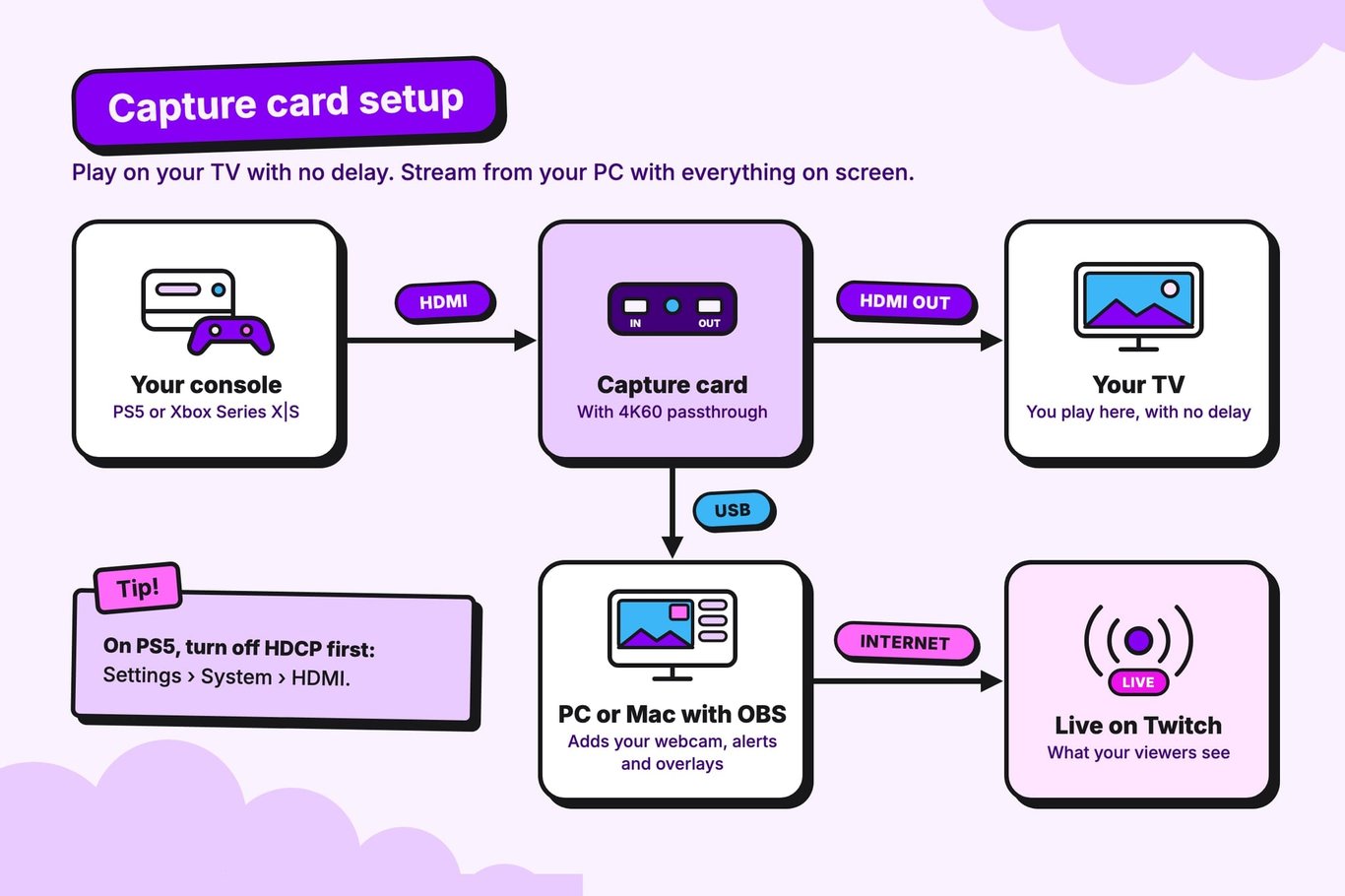
Three connections, in this order:
- Console to card. HDMI from the console’s HDMI OUT into the card’s HDMI IN.
- Card to TV. A second HDMI cable from the card’s HDMI OUT to your TV or monitor. That’s the passthrough.
- Card to PC. The card’s USB cable into your PC.
An Xbox Series X|S wires up exactly the same way. On PS5, do the HDCP step below before you plug the card in.
Fix the console settings people get wrong
1. Turn off HDCP on PS5
HDCP is copy protection, and with it on, a capture card sees a black screen. PS5 has it on by default. Elgato says to switch it off while the PS5 is plugged straight into your TV or monitor, not through the card. Go to Settings, then System, then HDMI, and turn off Enable HDCP. Then wire up the card. Turn HDCP back on when you want to watch Netflix or other streaming apps, which won’t play with it off.
Xbox doesn’t have that step. AVerMedia’s support FAQ says HDCP is off by default on Xbox and only switches on while protected apps like Netflix or Disney+ are open. If your picture goes black, close those apps, and restart the console if it stays black.
2. A gray, washed-out picture is HDR
If your card can’t handle an HDR signal, the picture in OBS looks gray and flat. AVerMedia’s fix for both consoles is to turn HDR off in the console’s display settings. On PS5, that’s Settings, then Screen and Video, then Video Output. On Xbox, open Settings, then General, then TV & display options, then Video modes, and untick Allow HDR10. Some cards convert HDR to SDR for you, so check your card’s spec page before you give up HDR on your own screen.
3. Passthrough and capture are different numbers
Your TV can show 4K while your stream runs at 1080p. That’s normal, and it’s the whole point of passthrough. If OBS shows nothing, check that your card supports what the console is sending. Dropping the console’s video output to 1080p is a quick way to test.
4. Headset audio on PS5
Plug an analog headset into the PS5 controller and the console reroutes all audio, game and voice, to the controller, so your card gets no sound. Elgato’s fix is to plug the headset into your computer instead and monitor the audio there.
Add the capture card to OBS
- Check your canvas. In OBS, open Settings, then Video, and make sure the Base (Canvas) Resolution is 1920 × 1080, the usual size for a Twitch stream.
- Add the card. In the Sources box, click +, choose Video Capture Device, name it, and pick your card from the Device list.
- Set it to match. Right-click the source and open Properties. Set Resolution/FPS Type to Custom, choose 1920 × 1080 and set the frame rate to 60. Elgato’s own OBS guides use the same settings, and they say 30 is fine if your PC struggles.
- Check the sound. Make some noise in the game and watch the Audio Mixer. If the meter doesn’t move, check your card’s audio settings.
- Build the scene. Add your webcam, your mic and your overlays around the game.
Then set your bitrate under Settings, then Output. Twitch’s broadcasting guidelines have listed 6,000 Kbps for 1080p at 60 frames per second, and in June 2026 Twitch said it raised its bitrates, up to 7.5 Mbps at 1080p. Check the current guidelines, and pick a number your upload can hold comfortably. A stable stream beats a sharper one that drops frames.
Add Stream Stickers to your OBS scene
With the game showing in OBS, adding Stream Stickers takes a few minutes. This is the part a console can’t do by itself: stickers your viewers send land right on top of your gameplay.
- Install and log in. Install Stream Stickers from the Twitch Extension Store, then log in with Twitch at dashboard.streamstickers.com. A quick three-step setup opens the first time.
- Drag it into OBS. In step 2, “Browser source,” drag the DRAG INTO OBS button into your scene. It creates the browser source with everything set up for you.
- Or add it by hand. Tap COPY URL, add a Browser Source in OBS, paste the URL, and type your exact stream size, usually 1920 × 1080, into Width and Height. Never drag the corners to resize it: that makes every sticker blurry.
- Layer it on top. Put the browser source above your capture card in the Sources list, so stickers land over the game.
- Add it to every scene. Copy and paste the same source into your other scenes, and turn the audio off on the copies so sounds don’t play twice.
- Test it. Back in the dashboard, tap TEST BROWSER SOURCE SIZE, then SEND A TEST STICKER, and watch it land on your game.

Your Browser Source URL is personal to your channel, so never show it on stream. The installation guide has every step with screenshots, and if you use Streamlabs Desktop instead of OBS, the Streamlabs guide shows the same setup.
Give chat something to do
Chat can’t press buttons on your console, but Stream Stickers gives them a way in. With Throwables, viewers who want to can spend Bits to aim and hurl objects at your stream. Super Stickers are full-screen videos with sound that viewers can choose to play on a big moment. You set the prices, and you decide which ones your viewers can use.
Anyone can install Stream Stickers and use Global Stickers and custom stickers for free. Charging Bits, Super Stickers and A.I. text-to-speech need you to be a Twitch Affiliate or Partner. Our FAQ answers the console question too: yes, it works, as long as the console runs through streaming software like OBS.
Test it before launch week
Digital pre-orders of GTA 6 can start pre-loading on November 12, and the game launches November 19. Run a full test stream before then, with the console, card, scene and stickers all on, and watch it back for picture, sound and delay. Our GTA 6 launch-day guide has the rest of the plan.
- Card wired, HDCP off on PS5, and the picture and game sound showing in OBS.
- HDR sorted, so the colors in OBS look right.
- Headset plugged into your PC if you’re on PS5.
- Stream Stickers browser source sized to your stream, with a test sticker sent.
- Bitrate set to something your upload holds, and a test stream watched back.
A calm test run now means fewer surprises on launch night. You’ve got this.