GTA 6 Launch Stream Checklist for Twitch Streamers

What to test, schedule and back up before GTA 6 lands on November 19, so launch night is about the game.
GTA 6 launches Thursday, November 19 on PS5 and Xbox Series X|S, and a lot of streamers will be live for it. You can’t control the unlock hour or the crowd. You can control how ready you are. This GTA 6 launch stream checklist covers everything around the game: what to test, when to go live, how to announce your stream, what to back up and how to rest. For the console, capture card and OBS side, start with our GTA 6 stream setup guide.
What’s confirmed for GTA 6 launch day
- Date and platforms: November 19, 2026 on PS5 and Xbox Series X|S, per Rockstar. No PC version has been announced.
- Pre-load: digital pre-orders can pre-load from November 12. Boxed copies come with a download code instead of a disc, and they’re on sale from November 12 too.
- Rating: the ESRB rates GTA 6 M (Mature 17+). Twitch adds the “Mature-rated game” label to your stream automatically when you play an M-rated game. Any other labels your content needs are yours to set.
- The unlock hour: not confirmed. At our last check, Rockstar had published a date but no exact time.
Reports based on store listings point to a midnight-local-time rollout in most regions, but that isn’t Rockstar’s word. Treat it as a good guess. Before you plan your start time, check your own store listing and Rockstar’s Newswire, and have a plan for either answer.
Your GTA 6 launch stream checklist
Work through it in this order. First the things that can break, then everything that makes the night go well.
Test everything that can break
- Finish the pre-load and boot the game once. Rockstar hasn’t published an install size or said whether a day-one update is coming, so leave extra storage and extra time.
- Run one full test stream. Capture card, mic, webcam, alerts and overlays all on, then watch the recording back. The setup guide has the settings.
- Decide what to do about music. Twitch scans VODs for copyrighted audio, mutes the sections it finds and can delete clips. We haven’t seen Rockstar announce a streamer-friendly music option for GTA 6, so plan to check your first VOD and turn the in-game radio down if you want to be safe.
- Charge everything. Controller, spare batteries, headset.
- Test your Stream Stickers overlay. In your dashboard, open Settings → SETUP, tap “TEST BROWSER SOURCE SIZE” and “SEND A TEST STICKER”, and make sure the OBS browser source is in every scene you’ll use, your “be right back” scene included. The install guide has the steps, and the FAQ covers what to check if it goes quiet.
Pick your start time
Because the unlock hour isn’t confirmed, plan for both cases. If it lands at midnight where you are, decide now whether you’re a midnight streamer or a morning-after streamer. Neither is wrong.
- Go live early. Start about half an hour before the likely unlock for a pre-game hangout. Chat can make predictions while you check your levels and your viewers arrive.
- Don’t promise an exact hour yet. Say “launch night” in your title and socials, and add the time once it’s official.
- Have a plan for waiting. If the unlock comes later than you hoped, or the game needs an update, keep a “starting soon” scene and a few questions for chat ready.
Announce it: title, schedule and notifications
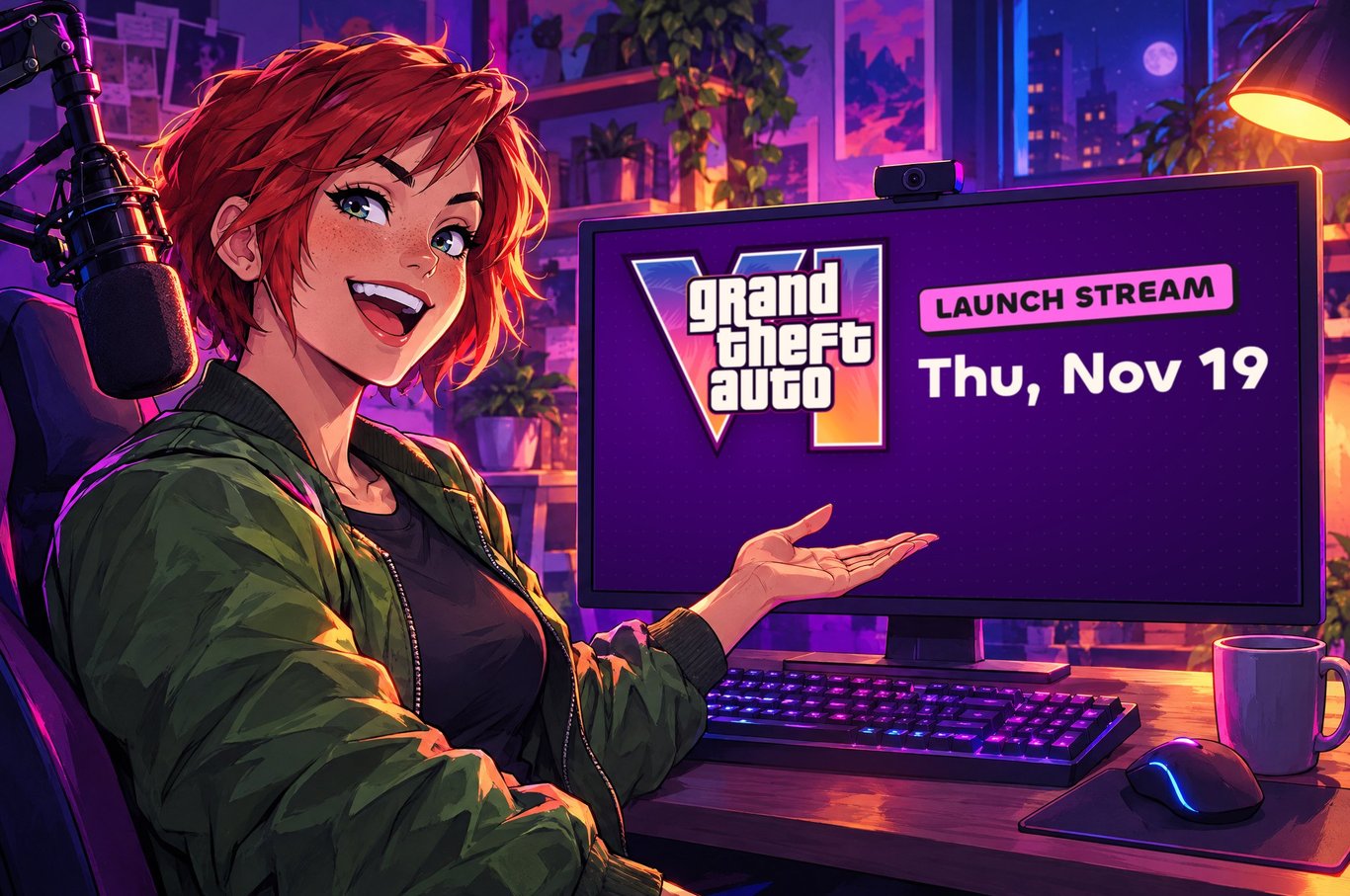
- The schedule. In your Creator Dashboard, go to Settings, then Channel, then Schedule, and add your launch stream. Affiliates and Partners can add a one-off stream for a specific day. Everyone else can set recurring segments.
- The title. Write two or three ahead of time: one for the pre-game hangout, one for the first playthrough, one for the late stretch. Change it as the night changes, and keep spoilers out of it, because anyone browsing the category will read it. Need a hook? Our GTA 6 stream ideas have a few.
- The Go Live notification. Your followers get a notification when you go live, and you can write your own text in the Edit Stream Info panel in Stream Manager. Twitch limited it to one every four hours when the feature launched, so write it before you click Go Live, not after.
- Your Discord and socials. Post the plan a few days ahead and again on the day, with your start time in a time zone your viewers know.
Back up what fails on big nights
- A second connection. Wired beats Wi-Fi. Keep a phone hotspot as a fallback, and know how to switch to it before you need to.
- A local recording. Record in OBS while you stream, so a dropped stream doesn’t mean a lost night.
- A fallback scene. If your capture card or your connection drops, switch to your “be right back” scene and tell chat what’s happening.
- A fresh start. Restart your PC and your streaming software before you go live, and close everything you don’t need.
Brief your mods
A busy launch night needs more than one person watching chat. Line your mods up ahead of time and agree on three things: your spoiler rules, what gets timed out, and who keeps an eye on chat while you’re mid-chase. Pin the rules before you start, so nobody has to explain them in the middle of the story.
Plan your rest
Launch nights run long, and hour six feels different from hour one. A few simple rules:
- Sleep before launch. If the unlock is at midnight your time, an early night or an afternoon nap helps.
- Eat a real meal first. Keep water and snacks within reach.
- Take planned breaks. Stand up, stretch, switch to your “be right back” scene and tell chat when you’ll be back.
- Pick an end time and say it. Put it in your schedule or your title. The game will still be there tomorrow, and so will your viewers.
The one-page version
- Pre-load done, game boots, storage free.
- Test stream watched back, with capture card, mic, webcam and overlays on.
- Overlay tested, and the browser source in every scene.
- Music plan made, and your first VOD checked.
- Start time chosen, with a plan for an earlier or later unlock.
- Schedule posted, titles written, Go Live notification ready.
- Mods briefed, spoiler rules pinned.
- Backup connection, local recording and a “be right back” scene ready.
- Controller and headset charged, water and snacks in reach.
- End time chosen, and some sleep.
Do it over the next few days, and on launch night all you have to do is press Go Live. Then you can enjoy the game, and your chat. When you’re ready for ideas for the stream itself, start with our GTA 6 stream ideas.
Haven’t installed Stream Stickers yet? It takes a few minutes, and our easy setup walks you through it.
Anyone can install Stream Stickers and use Global Stickers and custom stickers for free. Charging Bits, A.I. text-to-speech, Reward Stickers, Super Stickers and Sticker Party need you to be a Twitch Affiliate or Partner.